There are two ways to assign a driver to a device:
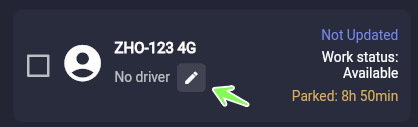
To manually add a driver go to the Map page. On the Devices list you will see a pencil icon. In the example below there is 'no driver' assigned to the device so we will assign a driver. Click the pencil icon.
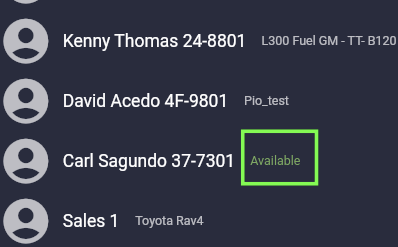
Click the drop-down arrow and you will see a list of your drivers that you have created. The system shows you which drivers have already been assigned to a device and which drivers have not been assigned and are therefore 'Available'. In the example below we see that Carl is available. Click on 'Carl Sagundo'.
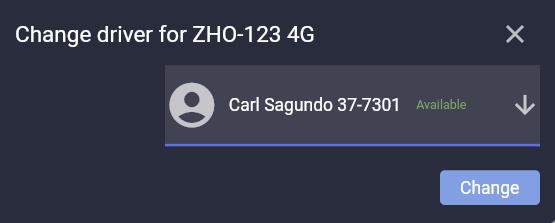
Then click the 'Change' button and you're done!
Check with your GPS tracker provider on how to work with RFID keys. The most important part is to make sure the driver's RFID key is input in the driver's details in the Drivers Page. Then, once the driver has swiped his RFID key on the RFID receiver of the device, the system will recognize that key belonging to that driver and will automatically change the driver.
END OF DOCUMENT