The Map page is where you can see all of the devices installed in your vehicles, trucks, motorcycles, etc. Below you will find an overview of the Map page and its major features.
DEVICE LIST
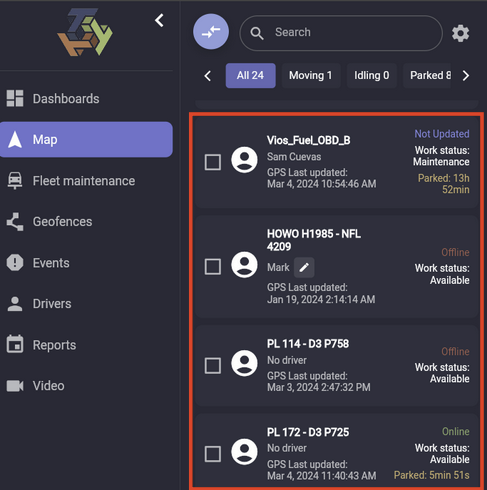
The Device List is a list of all the devices in your platform account.
DEVICE STATE
A device can be in any 1 of 4 states:
Online - the device is connected to the server and is sending its current location data. with little to no delay
Not Updated - the device is connected to server but has not sent updated location status for more than 10 minutes. This state usually occurs when the device is in power-saving mode (such as when ignition is OFF or device is stationary), or when device is an area where the is poor GPS signal, such as in underground parking.
Offline - the device is not connected to server which can indicate that the device is in a deep power-saving mode (most dashcams and some GPS trackers enter this state when ignition is OFF in order to conserve the vehicle battery). If the device is not in a power-saving mode then this state can indicate there is an issue with the device.
Unregistered - the device has not sent any data to the server. This state occurs when you first register a device on the platform and the device has not yet sent a location coordinate to the server.
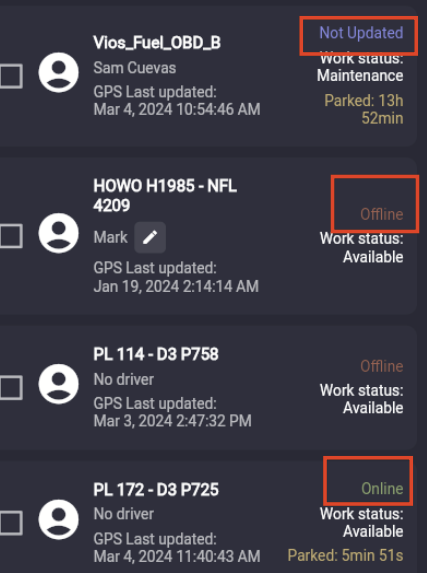
Other information that you will see in the Device List is the name of the device, which driver is assigned to the device, the last tight GPS location was updated, and the devices work status.
DEVICE MOVING STATUS
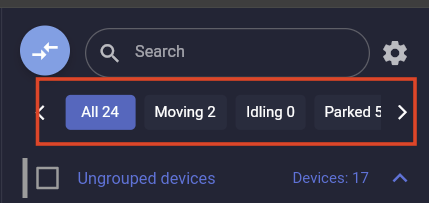
At the top of the Device List you will see various device filters so that you can view only the devices that meet your filter criteria. For example, if you want to see in the Devices List only devices that are moving, click the 'Moving' button and you will get a list of all devices that are moving.
DEVICE WINDOW
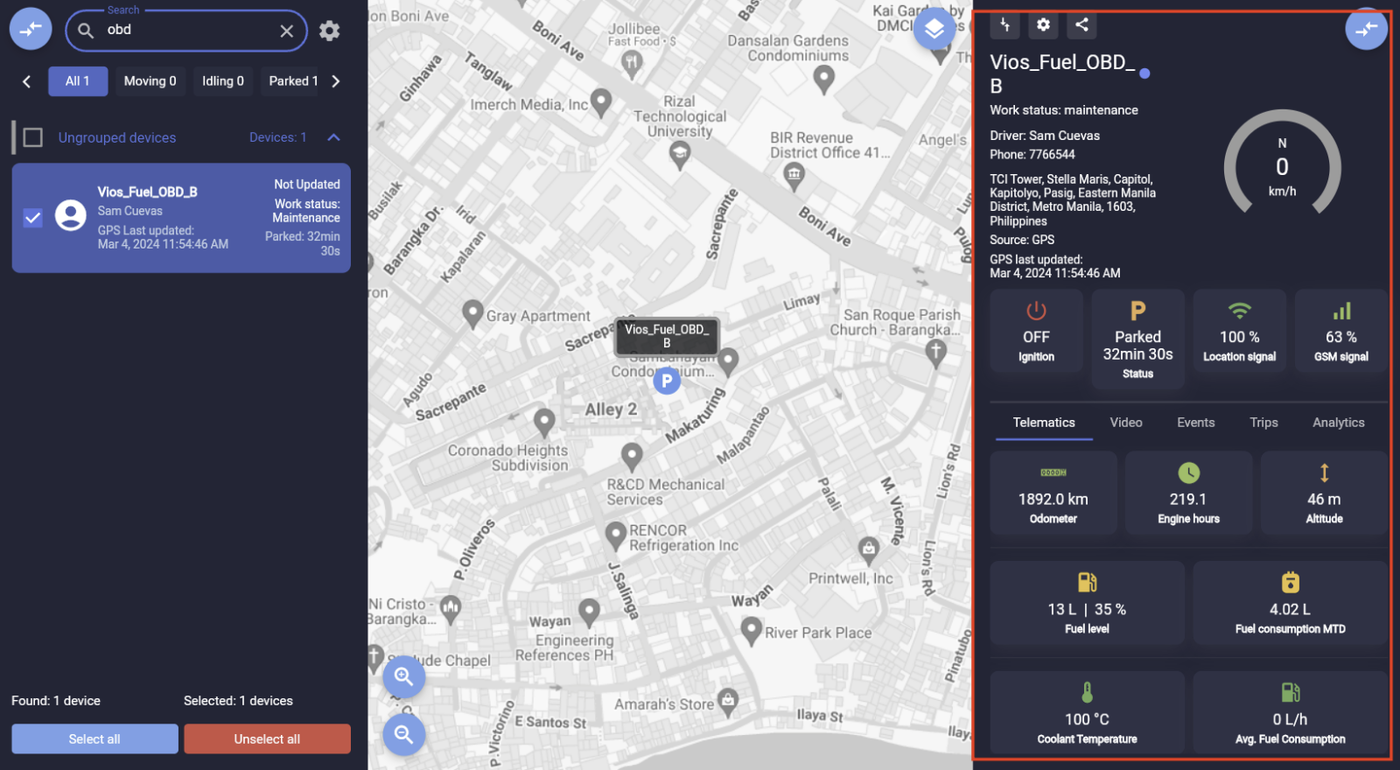
The device window is where the general information of the device is displayed. Depending on the type and features of the GPS tracker you may see different information displayed.
DEVICE TABS
In the device window you have Device Tabs. These tabs display specific information about your device.
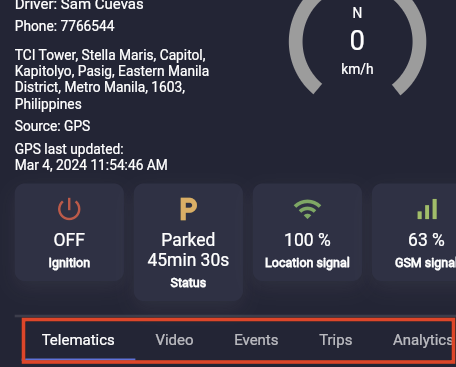
Telematics - displays general information about the device and can also display fuel information if your device is connected to a fuel sensor
Video - displays the real-time live video of a dashcam or MDVR device
Events - displays any events and alerts that you have configured, such as over-speeding, entering/exiting geofences, ignition on/off and more
Trips - displays the trips completed by the device for a given time period
Analytics - displays key performance metrics of the device such as distance traveled, idling time, parked time, driving time, and more
DEVICE SETTINGS
In the device settings you can make various changes to your device.
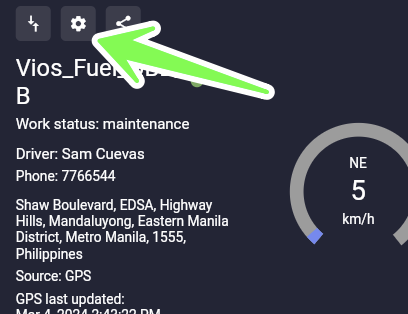
Device settings - You can change various details of the device including device name, work status, fuel type, engine hours, and odometer.
Fuel Calibration - configure the fuel tank level
Fuel Consumption - if your tracker can read the fuel consumption level then here you can select the tracker parameter for the fuel consumption data
Bluetooth sensor - configure bluetooth sensors such as fuel and temperature sensors
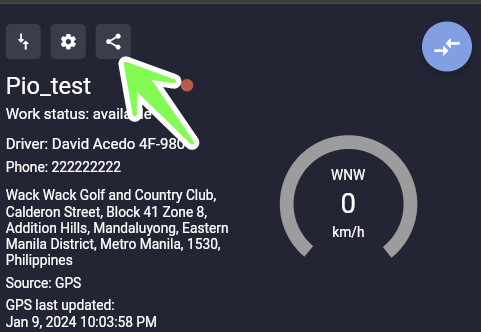
SHARE DEVICE
You can share the location of one or more devices with a third party. The benefit is that you don't have to give that third party access to your account, the sharing is done via a link that the third party can open in any browser. And you can decide for how long the third party has access to those shared devices.
GENERAL SETTINGS
In the General settings icon you can adjust various settings of your account.
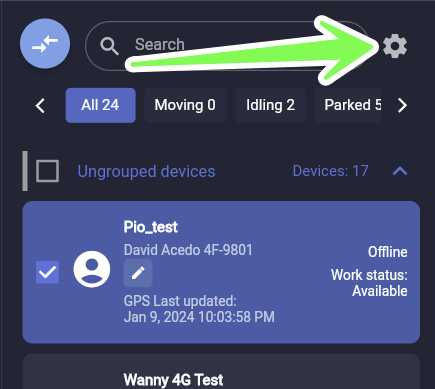
Create device - depending on the permissions of your account, you may be able to register a new device on your account
Work statuses - you can create different work statuses that you can assign to your devices so that you know which devices (vehicles) are available and which are not. You can also create your own work statuses.
Groups - you can organize your devices into groups so that they are easier to view on the map page, and you can create your own custom groups
Cost of Fuel - you can input the current cost of fuel. This cost is used in some reports that rely on the cost of fuel such as 'Idling Fuel Cost' and others
Share devices - here you can select one or more devices to share with a third party. The benefit is that you don't have to give that third party access to your account, the sharing is done via a link that the third party can open in any browser. And you can decide for how long the third party has access to those shared devices.
Speed legend - you can color code the different speeds of your device. This is helpful when you create a trips report on the map page where you will be able to see the speeds traveled at different points of the trip.
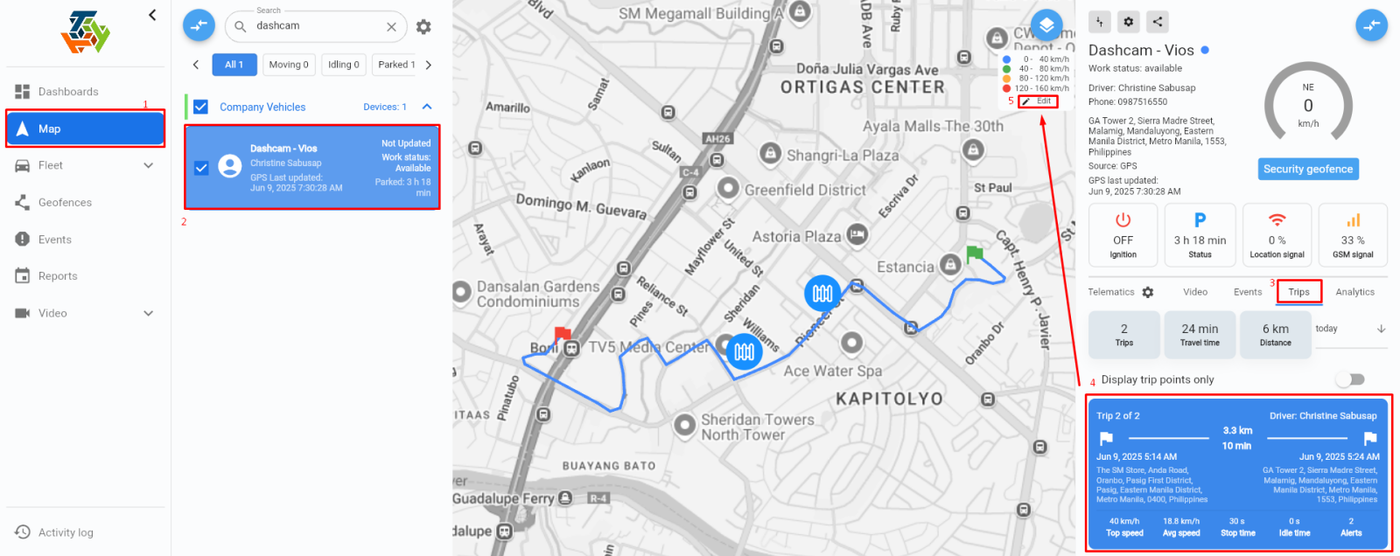
You can also edit the speed legend by selecting a trip from the Trips tab. This allows users to easily audit the displayed trip by visually reviewing the speed limits that you want to check.
To use this feature, go to the 'Map page', select a device you want to review, then a trip to display the speed legends with the edit icon. Click the pencil icon to customize the speed ranges and their corresponding colors.
END OF DOCUMENT