GPS Jamming Detection/Alerts/Report Feature
The GPS Jamming detection feature is designed to detect and alert users of any GPS jamming activities that may affect the accuracy and reliability of the GPS trackers installed in your vehicles. This feature alerts you when someone attempts to block the GPS signals with a GPS Jammer.


The widget displays the current status of the GPS signal and provides real-time monitoring of any jamming activities. The widget will update according to the detected signal state.
-
Normal Signal - This is the default state (green color), indicating that there is no jamming detected. The GPS signal is stable and functioning normally. Alerts will not be triggered.
-
Potential Jamming - This state (orange color) indicates that a potential GPS jamming source is nearby, but it’s not yet strong enough to fully disrupt the GPS signal. This could happen when a GPS jammer has just been turned on or if the jammer is located at a distance but still detectable. The GPS signal may show some fluctuation or reduced strength, but no immediate alerts will be triggered unless the situation escalates.
-
Jamming Detected - This state (red color) indicates that GPS jamming is actively occurring. When this happens, the device location will not update and GPS signal will drop significantly, potentially reaching 0%. Users can be alerted immediately via in-app notifications and email alerts (if enabled).
Head to the events page. You can find a comprehensive list of events from various devices here.

After clicking 'Show event templates’ you'll find a list of all created event templates, where you can also add a new one by clicking the ‘Add new template’.

In the 'Create Event Template' section, you can fill out the form with details.

Event Name: Choose a name that makes it easy to recognize the alert (e.g., GPS Jamming Alert).
Event Type: For event type, select custom.
Device: Select which device(s) you would like to create the alert for.
Note that only certain devices have GPS Jamming detection capabilities. If unsure please ask us.
Select event parameter: In this field, it is important to select the right parameter which is ‘gnss.jamming.state’. Otherwise, the alert will not be sent.

Condition: This can be set to ‘Equal to’.
Value: 2
By combining these two, the alert will be triggered whenever the event parameter is set to 2 (indicating DETECTED).

You can also customize how you want to receive the alert, either via pop up or email by selecting the respective checkboxes. You can also provide emails (up to 10) that you want the alert to be sent to.
Text of the alert - type any message to include in the alert that you want to receive (e.g GPS Jammer is ON!).
Event activity period - this is the setting where the user can select the days of the week and times when the event will be active.
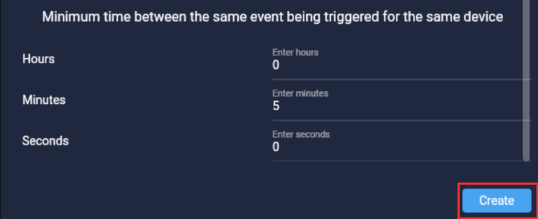
You may modify this to create an interval for the alert notifications to prevent spamming. Don’t forget to click ‘Create’ and you’re all set.
NOTE: You can create another similar alert for ‘Jammer Off/Stopped’ and ‘Potential Detection’. Just do the same instructions above but change the 'Value' parameter. Please refer below to what the values means:
0 - No detection/Jamming detection has stopped
1 - Potential Detection/Nearby
2 - Full detection of gps signal jamming
Map page - Events Tab

Pop up alerts
Events page


When you receive alerts, it will also show in reports where you can retrieve more info. To generate, go to the reports page, and select the ‘Events report’.

Choose the device for which you want to generate the report, you may select multiple devices to generate the report at the same time.
Next, choose custom events, and check the right alert you want to generate a report from.

Select Period - you can choose the date range for the report you’d like to retrieve.
Don’t forget to click ‘Create report’ and you’ll finally be able to see your reports.
Reports can be downloadable via pdf or excel.


END OF DOCUMENT