The Drivers page allows you to keep a record of all your drivers. You can then assign a driver to a device (vehicle). Assigning a driver can be very useful as some of the reports can include which driver was responsible for a vehicle during a given time.
For example, if you have one vehicle but three drivers drive the vehicle it would be difficult to know which driver was responsible for excessive idling or speeding. By assigning a driver to the vehicle you will know exactly who was responsible for idling or speeding.
DRIVER MANAGEMENT
To add a driver you must first decide if you will use the Departments feature. Departments is an optional feature that allows you to group drivers into specific departments. If you want to create Departments then follow the instructions in the next section, if not, then click here.
CREATE DEPARTMENT
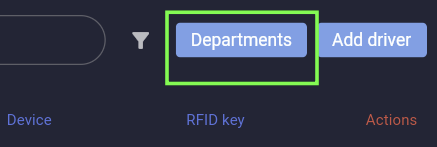
Click the 'Departments' button
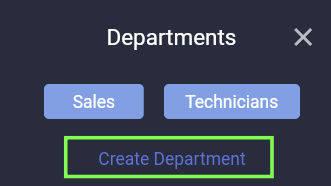
Click 'Create department'
Give your department a name and then click the 'Create' button.

- Click the 'Add driver' button on the top right of the page.
- Enter your driver's details. Note that you don't have to fill in all the fields, the only fields that are mandatory are Name and Phone Number.
- Click the 'Create' button.
To assign a driver to a device click here.