To create a service work click the 'Create Service work' button in the 'Fleet maintenance' tab.

The new service work window will now be visible.
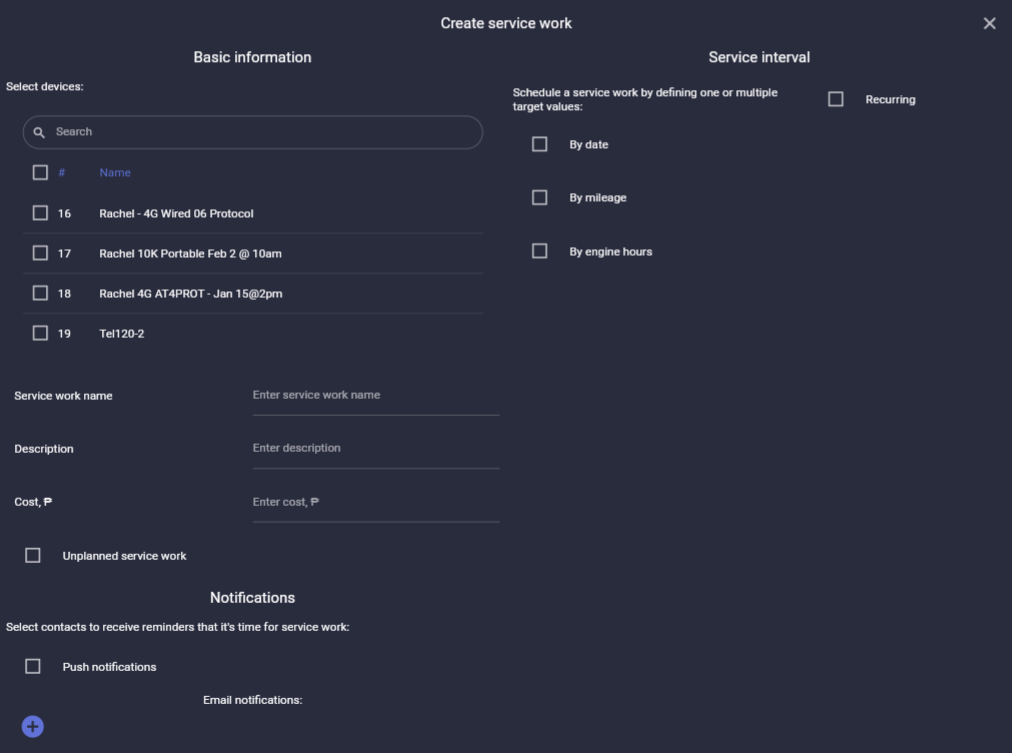
- Select devices - select the device(s) you want to assign the new service work to
- Service work name (mandatory)- give your new service work a name such as Oil change
- Description - you have the option of giving more detailed information about the service work such as Use 10-30 oil
- Cost (optional) - you can apply a cost to the service work
- Unplanned service work - this is a special kind of service work. Click this box if the service work was not planned for, such as repairing a flat tire, or repairing a bumper after an accident. By clicking the box you can filter scheduled service works from unplanned service works.
NOTIFICATIONS
You can choose to receive notifications on our mobile app (push notifications) and/or an email notification. For email notifications you can add multiple email addresses using the '+' icon.
RECURRING
If you click this box you will make this service work a recurring service work meaning when you complete the service work the system will automatically create a new service work with the same parameters (same devices, same intervals) as the original service work. This type of service work can come in handy for example when you want to perform an oil change every 5,000 km you would not need to create a new service work every 5,000 km. Instead, you would only need to click the recurring box, enter the first oil change interval and that's it!
SERVICE INTERVAL
The service interval section allows you to select when the service work will be triggered (will change from Scheduled service work to Due service work). The three possible conditions to trigger a service work are: by date, by mileage, by engine hours. You can also select more than one condition.
SERVICE WORK EXAMPLES
Service work by only one condition- date
The current date is March 2, 2024 and you want to perform a vehicle inspection by March 30th (the target date). You want to be reminded to perform the service work 5 days before the target date. You would enter the information as seen on screenshot below.
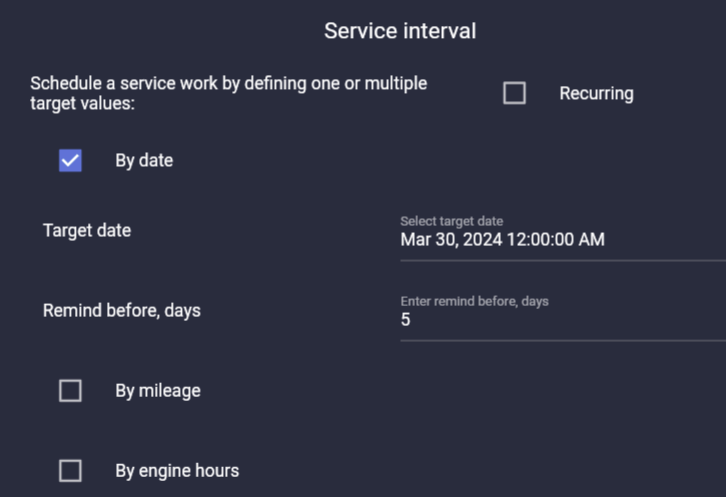
- We selected only the 'By date' condition.
- Target date - This is the date that you want to have the service work completed by. In our example we want to have this oil change completed by March 30, 2024.
- Remind before - we want to be reminded 5 days before the target date meaning that on March 25th (5 days before target date) the service work will become Due and a notification (email or push notification) will be sent to you. You now have 5 days to complete the service work. If the service work is not completed by March 30th, the service work will move to Expired status but you can still complete the service work.
Service work by date AND mileage conditions
Continuing from the example above, we now want to add a mileage condition. So, referring to the image below, we click the 'by mileage' box, and you will see that the system shows you the current vehicle mileage value of 6,821 km. We set the target mileage to 10,000 km and 'remind before' 500 km, meaning that this service work will be triggered and set to Due if the mileage reaches 9,500 km (being 10,000 km target mileage - 500 remind before mileage).
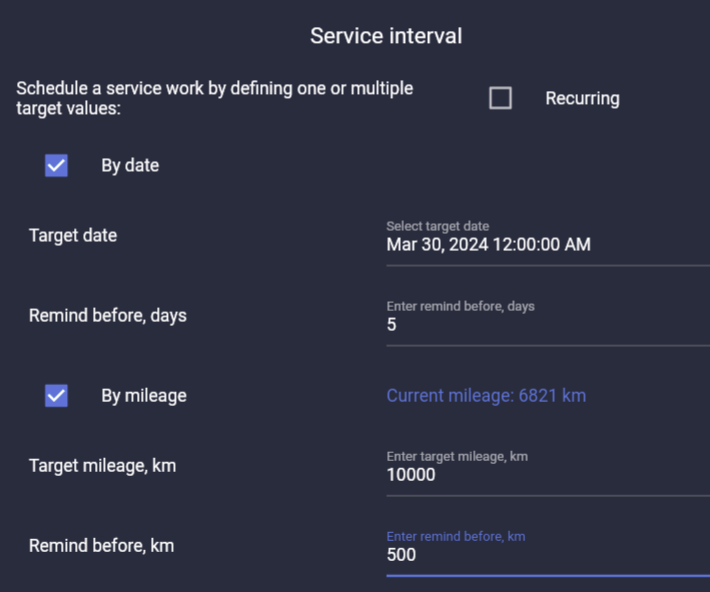
But wait! We already have a 'by date' condition, so what will the system do now that we have 2 conditions? Well, the logic of the system states that the service will come Due as soon as any condition is triggered. In our case the service work will be triggered and change to Due if either the current date is March 25th OR the vehicle reaches 9,500 km in mileage value.
For an overview of the Fleet Maintenance page click here.
END OF DOCUMENT