The Fleet Maintenance system helps you keep your vehicles in top running condition by scheduling and reminding you of service works (maintenance tasks) for your vehicles. You can also keep track of important documents that will expire such as vehicle insurance, and drivers licenses.
Some of the more common ones are:
- oil change
- rotate tires
- check for vehicle damage
- replace air filter
- driver's license expiry
- vehicle insurance expiry
Service works can be triggered by any one or a combination of one or more of the following triggers:
- Date - when you select the date trigger then when the date you specified in the future arrives, you will receive a notification via email or push notification that the service work is due;
- Mileage - when you select the mileage trigger, then when the specified mileage is reached, you will receive a notification via email or push notification that the service work is due;
- Engine hours - when you select the engine hours trigger, then when the specified engine hours value is reached, you will receive a notification via email or push notification that the service work is due
IMPORTANT FIELDS
- Target (date, mileage, engine hours) - The 'target' field determines when a service work will be considered as expired if not marked as completed.
- Remind before - The 'remind before' field determines when a service work is triggered, refer to example below.
A service work can only be in one status at a time. The statuses are::
Scheduled - a service work that has not yet been triggered, refer to example below.
Due - a service work that has been triggered by one or more of the triggers (date, mileage, engine hours) and has not yet reached its 'target' field, refer to example below.
Completed - a service work that has been marked completed by a user. A service work can be completed at any time even if it is in the 'Expired' status described below.
Expired - a service work that has reached its 'Target' field. Depending on how the service work was scheduled, the 'target' field could be based on date, mileage, or engine hours, or a combination of one or more of these triggers.
FLEET MAINTENANCE PAGES
There are two pages in the Fleet Maintenance module:

- Dashboard - a graphical page with a summary of all service works
- Fleet Maintenance - the page where you can view the details of all service works and create new service works
DASHBOARD
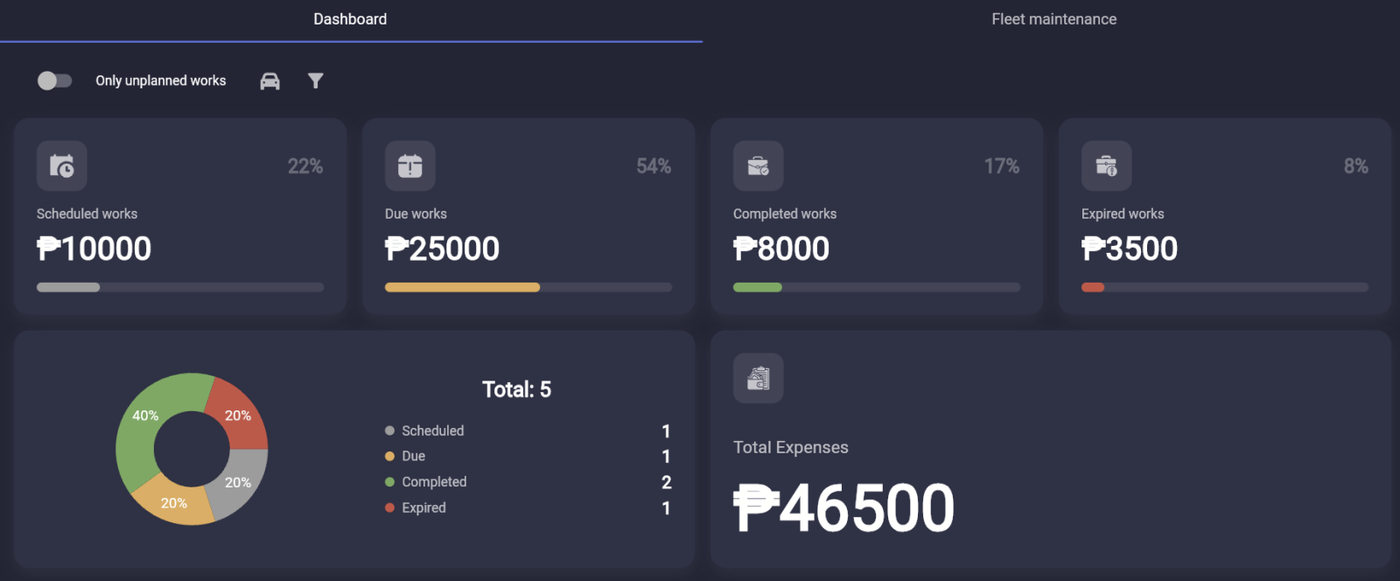
The dashboard is the first page you will see when clicking the Fleet Maintenance menu icon. The dashboard displays all your scheduled, due, completed, and expired service works, along with the total expenses.
FLEET MAINTENANCE
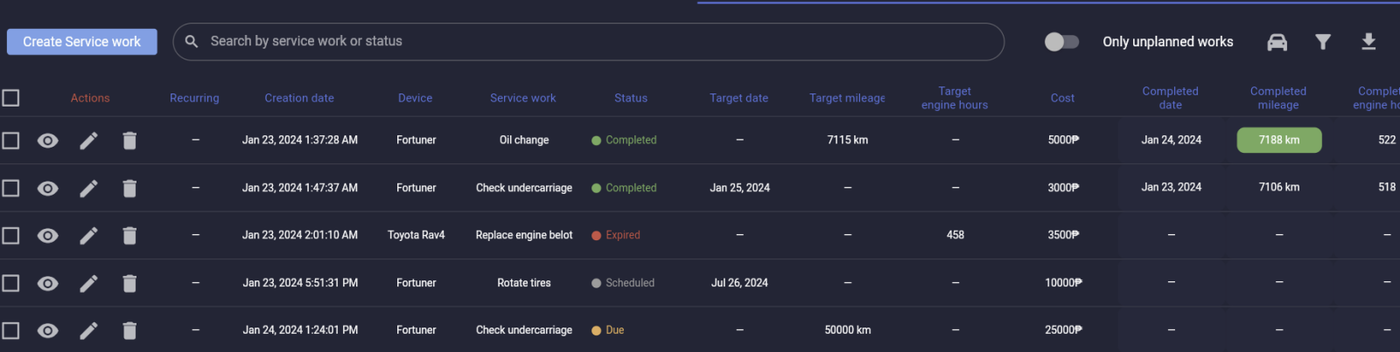
On this page all existing service works, their statuses, and other details of the service works are displayed. Details of each column are below.
Actions icons
- The 'eye' icon will open a window to display all the details of the service work
- The 'pencil' icon allows you to edit the service work
- The 'trash' icon deletes the service work
Recurring - Allows you to create a recurring service work every 'x' days, mileage, or engine hours
Creation date - the date the service work was created
Device - the device (GPS Tracker) that the service work is assigned to
Status - the status of the service work, statuses are explained above, or click here
Target date - the date that the service work should be completed by, if it is not completed by the target date then the service work will automatically be moved to the 'Expired' status
Target mileage - the mileage that the service work should be completed by, if it is not completed by the target mileage value then the service work will automatically be moved to the 'Expired' status
Target engine hours - the engine hours value that the service work should be completed by, if it is not completed by the target engine hours value then the service work will automatically be moved to the 'Expired' status
Cost - you can input the cost of the service work
Completed date - the date the service work is completed
Completed mileage - the mileage value of the device when the service work was completed
Completed engine hours - the engine hours value of the device when the service work was completed
COMPLETED SERVICE WORKS
Sometimes you will see one or more of the completed triggers (date, mileage, engine hours) with a green highlight around it.
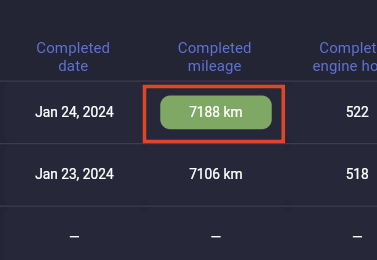
If a trigger is highlighted it means that when the service work was marked completed the trigger was equal to or greater than the 'target' field. In the example above, the target mileage was 7,100 km. When the service work was marked completed the target mileage was 7,188 which is equal to or greater than 7,100 which is why it is highlighted.
To learn how to create a service work click here.
END OF DOCUMENT