RFID Driver Identification System
The feature is designed to ensure that only authorized drivers can operate a vehicle. This system uses an RFID tag/key assigned to each driver. The tag contains a unique identifier that is read by an RFID reader installed on the vehicle's dashboard.
How It Works
-
Each driver is provided with an RFID tag, which contains a unique identifier. This will be provided by us.
-
When the driver approaches the vehicle, they need to present the RFID tag to the reader installed on the vehicle's dashboard.
-
The RFID reader scans the tag. If the tag’s unique identifier matches one of the registered IDs in the system, the device authenticates the driver.
-
Once authenticated, the vehicle is granted access, allowing the driver to start the engine.
Conditions
The vehicle will not start if:
-
Different RFID keys are used, it will only grant access if it matches the unique ID registered in the device.
-
The RFID key is not used, even if the car key is used.
Use Cases
-
The RFID system can ensure that only authorized drivers can start the vehicle, helping to control access. This is particularly useful for fleet management.
- Can be used to track which driver is operating the vehicle at any given time, the drivers can also be monitored by generating a driver report or with the harsh driving feature.
- Ensures that vehicles cannot be started without the authorized driver's tag. This helps prevent unauthorized use and enhances the security of the vehicle. An accessory such as buzzer can be added to alert when unauthorized access is attempted to protect against theft or misuse.
Adding a Driver on your driver’s list page
If you need to add drivers, navigate to the 'Fleet page', on the dropdown selection, click ‘Drivers’, and on the upper right side of the page, click ‘Add driver’. The driver page serves as your master driver list.
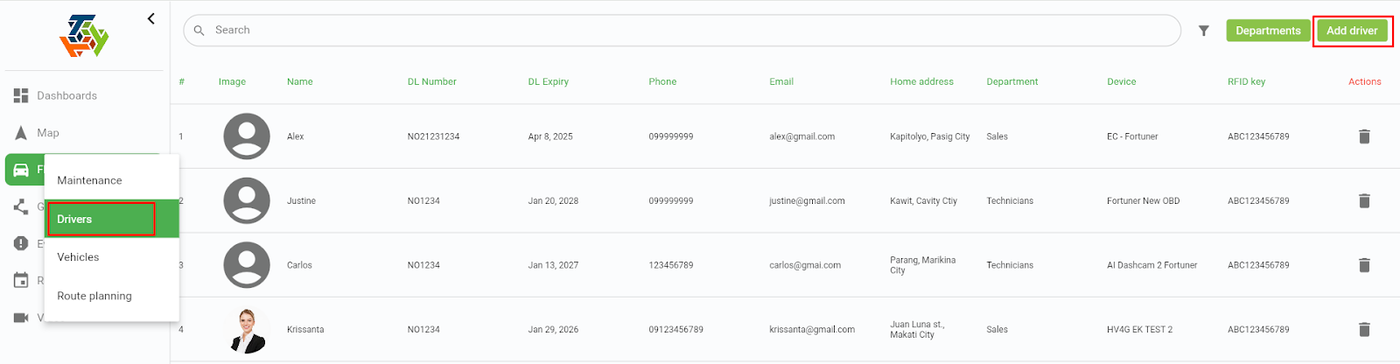
You can now add driver’s relevant details.
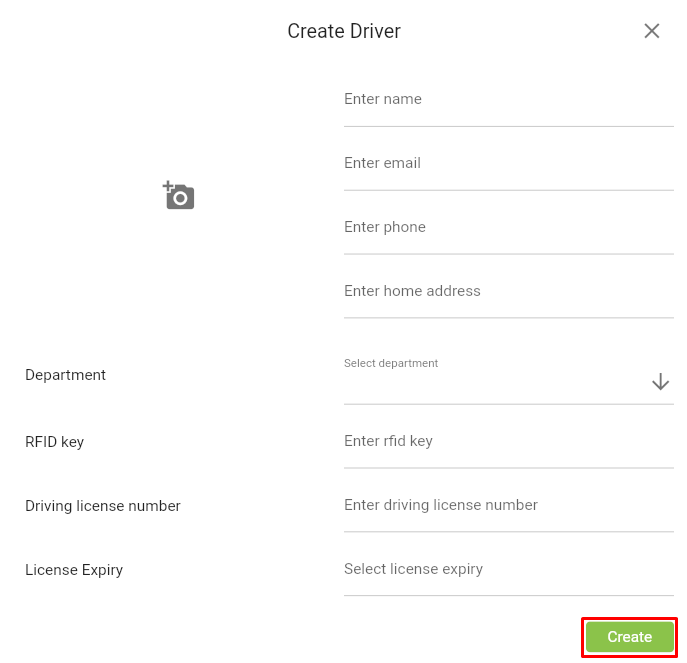
How to set the RFID ID for each driver
In the RFID key field for each driver, the unique ID can be entered. Once added, you can then provide the RFID tag to the corresponding driver, linked to their unique ID.
Note: Our team will provide you with the unique ID and tag. The unique ID can also be found on the bottom of the RFID tag.
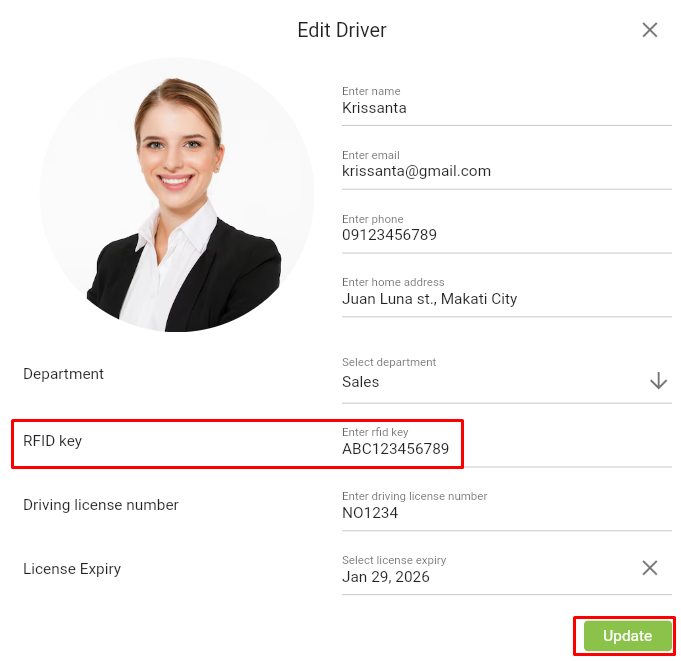
Once done, click ‘Create’ for newly added drivers or ‘Update’ if you have only modified details for an existing driver. You can now view the driver with the details.
When the driver has swiped his RFID key on the RFID receiver of the device, the system will recognize that key belonging to that driver and will automatically change the driver. Once authenticated, the vehicle is granted access, allowing the driver to start the engine with the vehicle key.
Generating a Report
To generate a report, go to the ‘Reports’ page and select ‘Driver change report’.

Select the device(s) you want to generate from and the date period, once done. Click ‘Create report’.

You can now see your drivers report.

Setting up Alerts
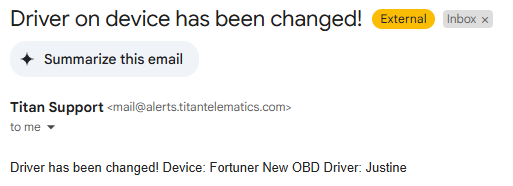
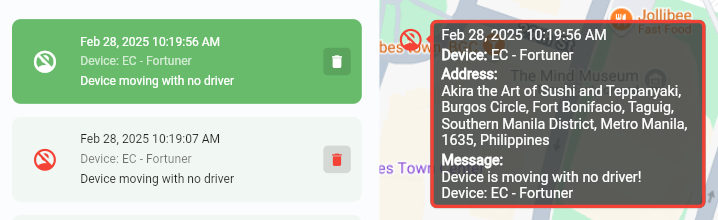
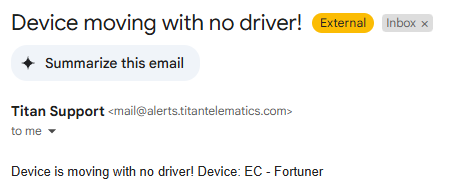
These alerts can notify you whenever the vehicle changes drivers or if it is operated without an authorized driver. You may refer to the example below or click here to see how to create an event alert and customize the alert according to your preferences.
Driver Change

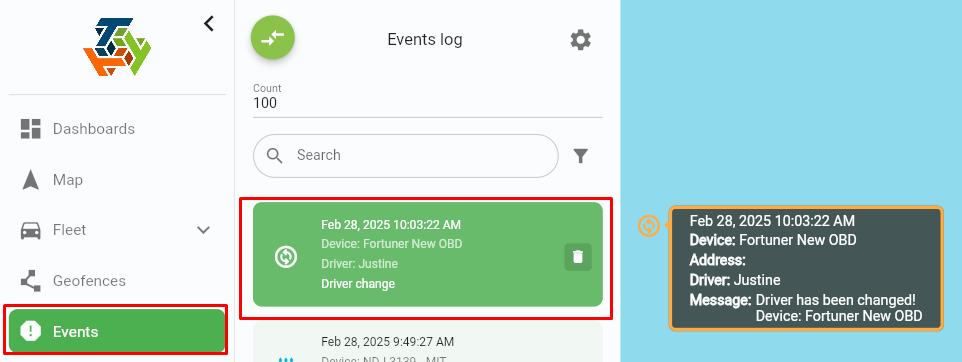
Device Moving

END OF DOCUMENT